Settings
Configure project metadata, signals, materials and other settings.
The Settings window organizes project configuration into four main categories:
- General settings
- Signals
- Materials
- MQTT
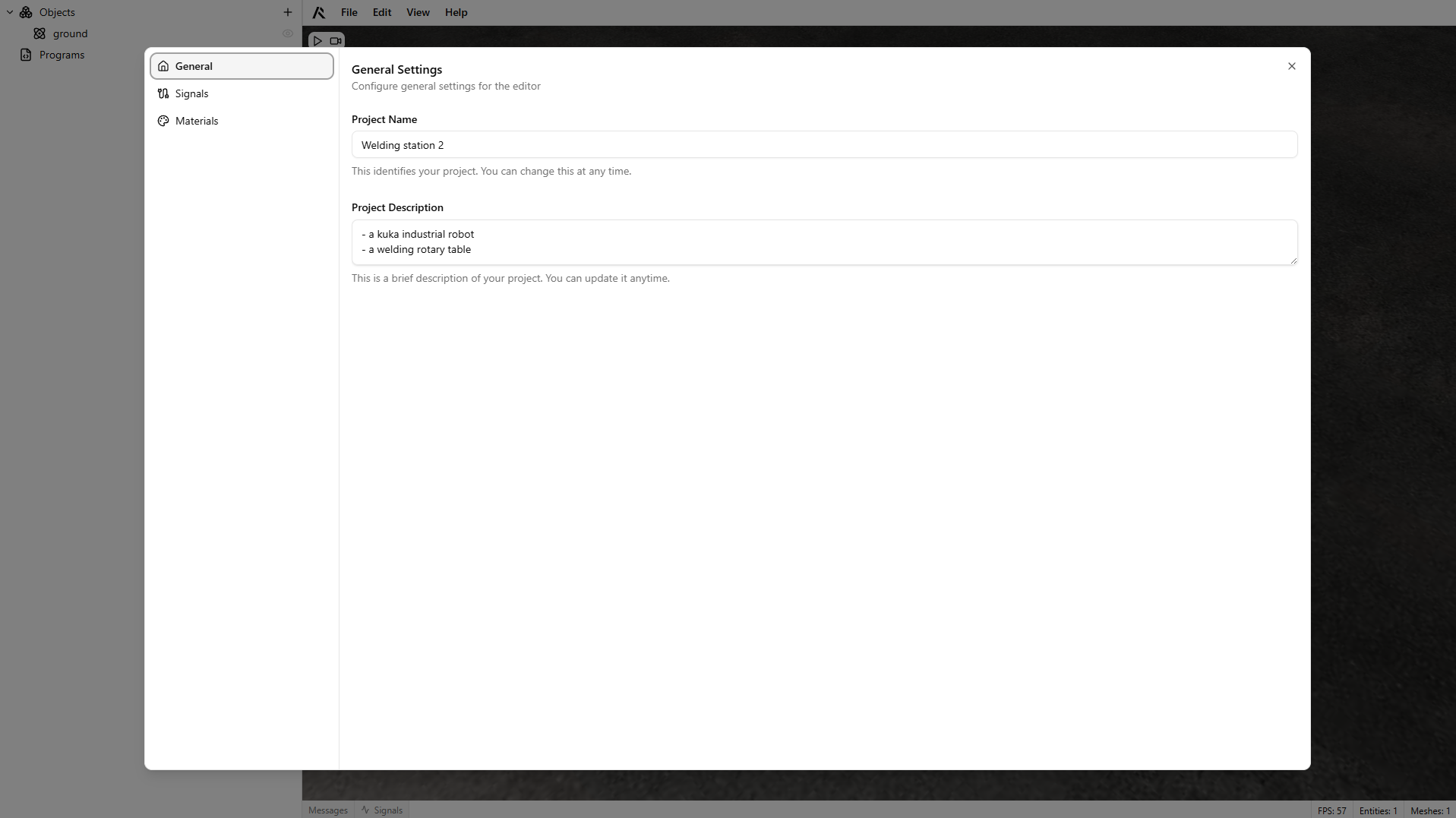
General settings
General settings contain project metadata, such as name and description.
Renaming a project
Open the General settings section and update the project name or description as needed.
Save changes using File > Save or CTRL+S.
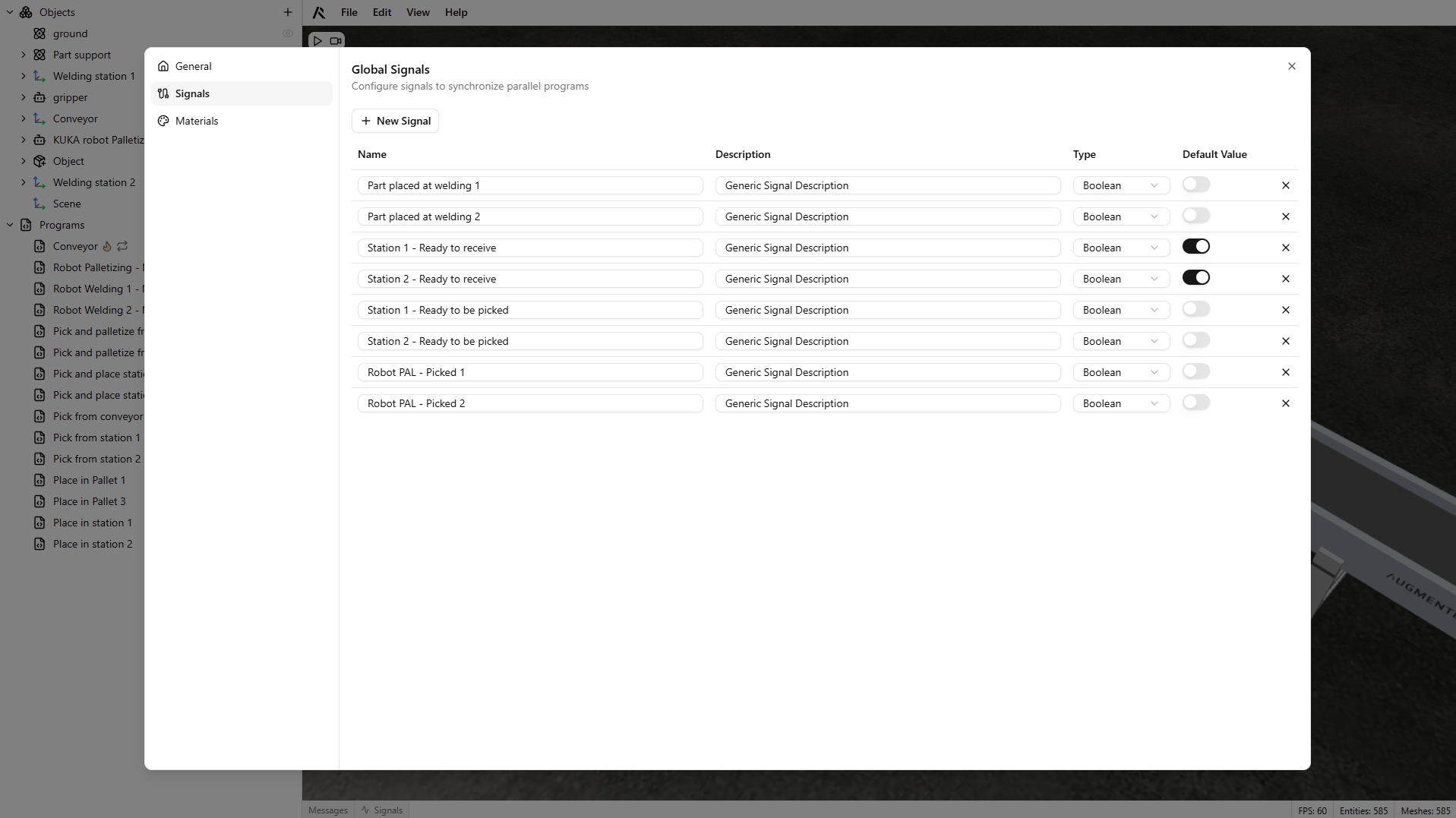
Signals
The Signals section stores global signals that you can later use in your programs.
For more information, see the Signals page.
Materials
The Materials section lists all materials imported or created in your project. When you import objects from .gltf, .glb, or STEP files, their materials become available here.
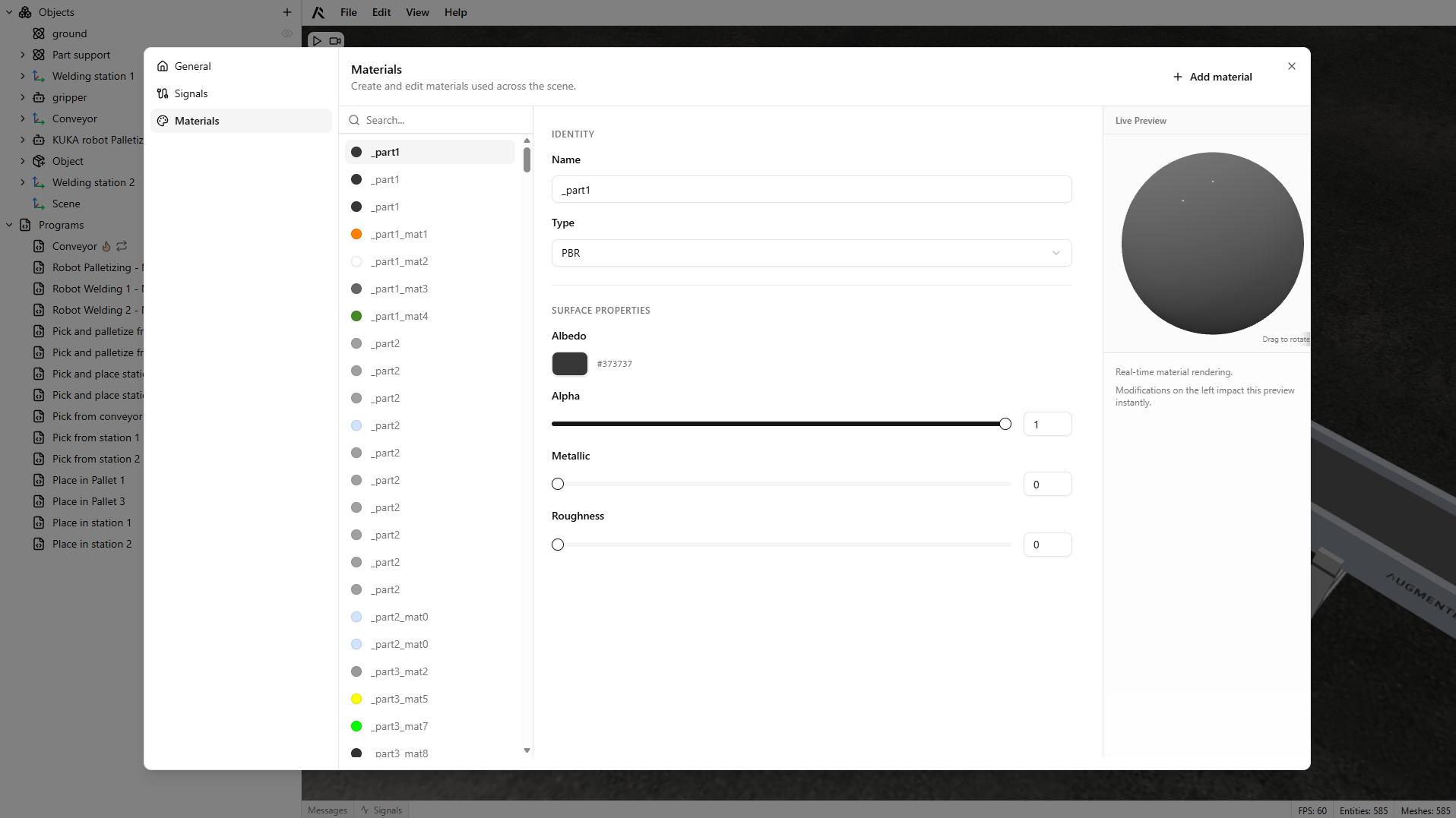
There are two material types:
- PBR materials (Physically Based Rendering)
- Standard materials
PBR materials
Use PBR materials when you want a more realistic look. You can adjust key physical properties:
- Metallic: how metallic an object appears (
0to1). - Roughness: how rough a surface appears (
0to1). - Alpha: transparency (
0to1). - Color: RGB, HSL, or HEX.
These properties help create scenes that better represent real-world objects and improve presentation quality.
Standard materials
Standard materials are designed for fast visualization. They do not simulate physical properties such as metallic or roughness.
For standard materials, the only editable property is color (RGB, HSL, or HEX).
Creating a new material
Click New material to create a material. Then set its name and properties based on the selected type (PBR or Standard).
To assign a material to a mesh, see the Graphics component page.
Deleting a material
Click the trash icon to delete a material. Meshes that were using that material will fall back to a default gray appearance.
MQTT
Use this section to configure an MQTT broker for reading and writing simulation signals. This allows external systems to monitor data and control the simulation.
For full setup details, see the MQTT documentation.