Programming
Learn how to program your simulations in ROBOTICA Studio
ROBOTICA Studio uses a low-code programming interface to bring automation ideas to life. It provides instructions and signals to interact with components in your scene.
The programming interface includes:
- Programs
- Instructions
- Signals
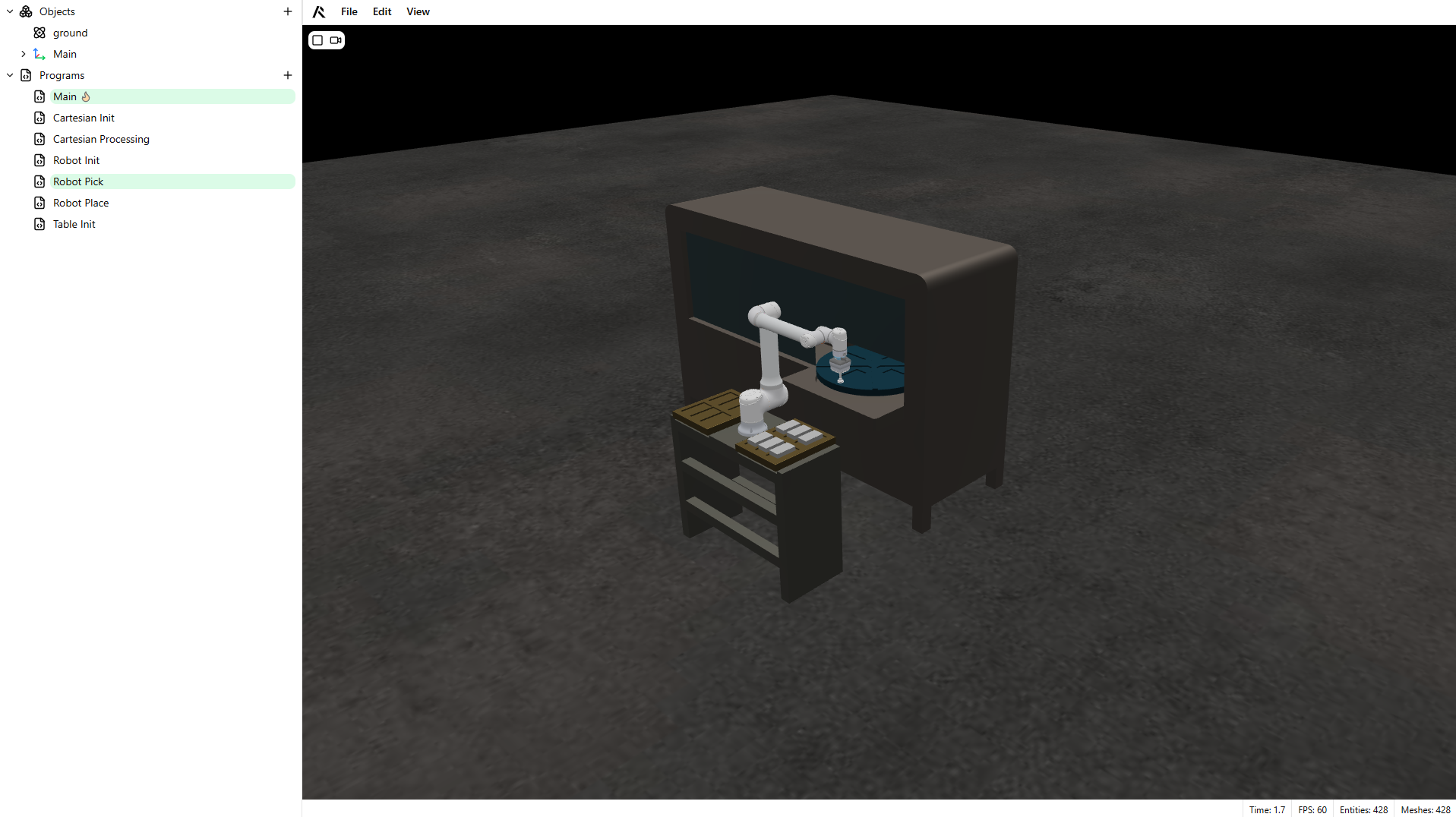
Programs
A program is a set of instructions. You can find your programs in the Program Tree.
Program configuration
Programs support three configuration types:
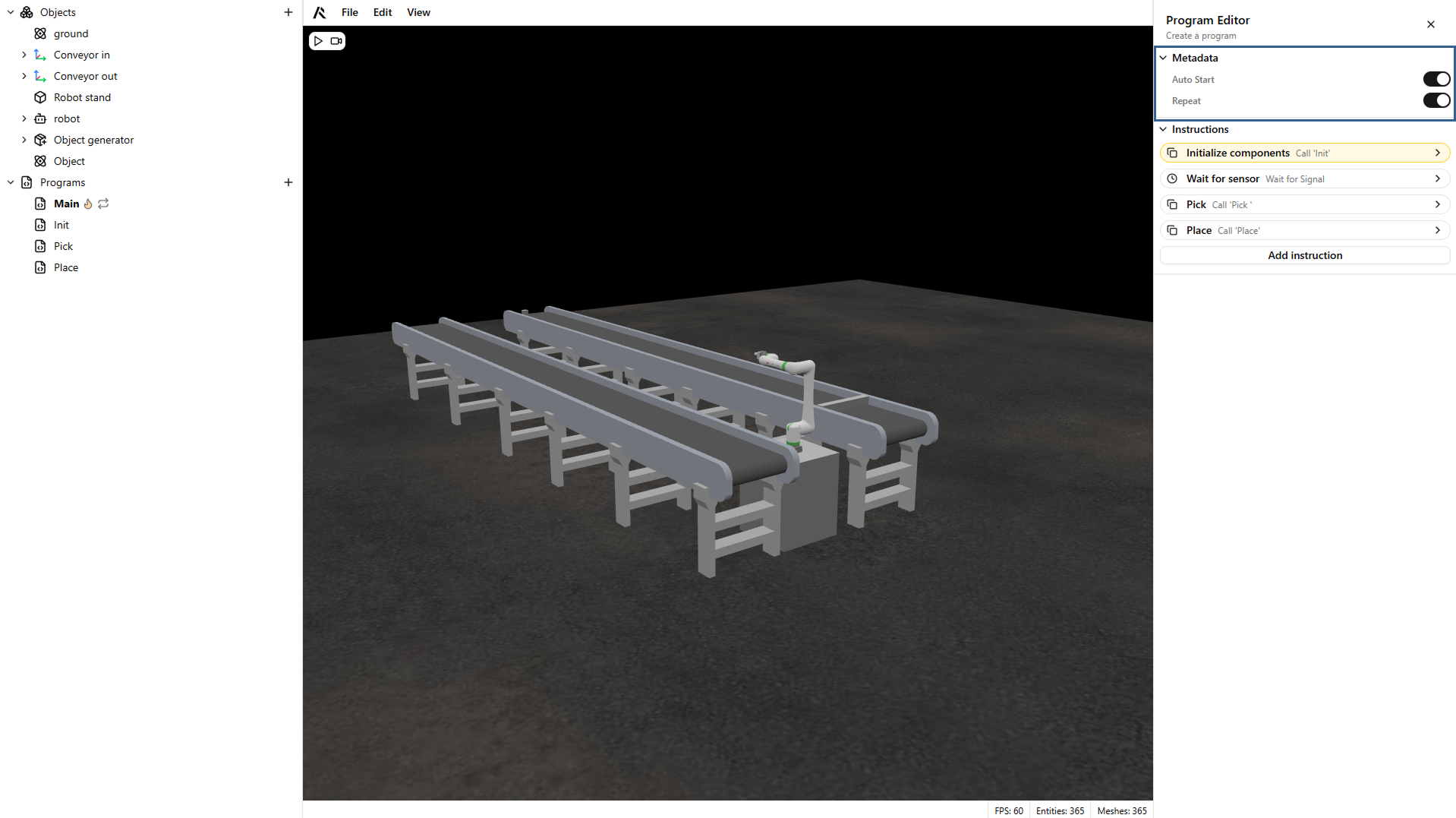
- Auto-start: starts automatically when the simulation begins and stops after the last instruction.
- Auto-start and repeat: starts automatically and restarts after executing the last instruction.
- Callable: does not start with the simulation and can be called by other programs.
You can identify the program type by the icon next to its name.
Warning
Example program structure:
- Main: auto-start
- Pick: callable
- Place: callable
Callable programs do not need to be configured.
Instructions
Each program is made of instructions that define how your automation system behaves. For more information on the instructions available refer to Instructions.
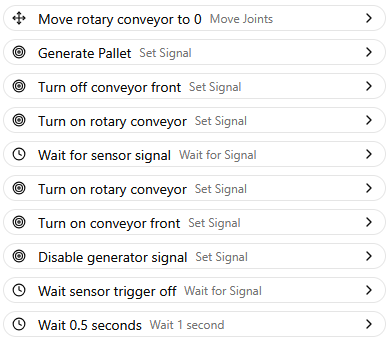
Rename Instructions
To rename an instruction, right-click it and select Rename.
Use clear names to keep your program easy to read and maintain.
Delete Instructions
To remove an instruction, right-click it and select Delete.
Shortcuts
- Ctrl + Click: Select multiple instructions.
- Delete: Remove the selected instructions.
- Ctrl + D: Duplicate the selected instructions.
Signals
Signals help you control and connect components in the scene, such as conveyors, sensors, axes, robots, and other devices.