Object Tree
Editing simulation objects
The Object Tree lists all active objects in the scene. Objects added from the Standard Asset library or imported from files appear in the tree. From here you can navigate the hierarchy, select and rename objects, duplicate or copy/paste them, and edit parent-child relationships.
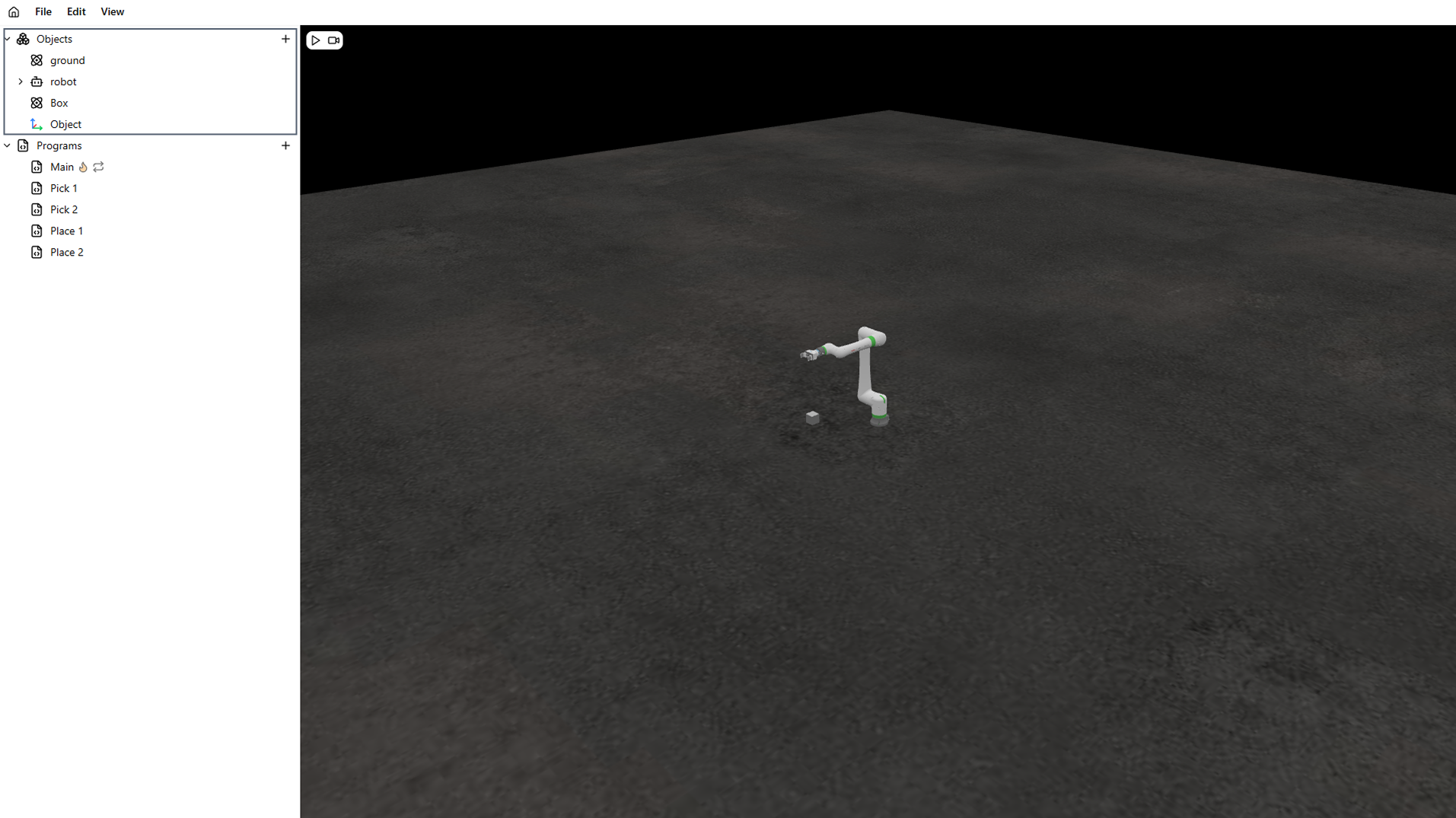
Create empty objects
Click the + button near the Objects title to create an empty object. Empty objects are created at world position (0, 0, 0) with identity rotation.
Add standard assets
Click the + button near the Objects title and choose Asset Library.
Use the library to:
- Search assets by name or reference
- Filter by category (for example Robot, Machine, Conveyor, Linear axis, or Gripper)
- Filter by brand
- Select an asset card to add it to the scene
After adding an asset, it appears in the object tree and can be edited like any other scene object.
Info
Standard assets are intended for simulation and concept validation. Real hardware behavior may differ from the simulated model.
Import a complete project
Click the + button next to Objects, choose Asset Library, then open the My projects tab.
This tab lists all projects you have created and lets you import them into the current scene. This is especially useful when you build systems as reusable modules, such as machine sections or validated subsystems.
Info
When you import a full project into a new scene, its materials, global signals, and programs are imported as well.
Select objects
Click an object to select it. The selected object appears in bold. Only one object can be selected at a time.
Rename objects
Right-click an object and choose Rename. The name becomes editable. Multiple objects can share the same name.
Delete objects
Right-click an object and choose Delete. The object and all of its children are removed.
Change parent-child relations
To change parent-child relations, drag an object onto another object to make it a child of that parent.
Reparenting can change the object's transform because its position becomes relative to the new parent.
To keep the object in the same world position when reparenting, drag it while holding CTRL+R.
Create empty childs or parents
Right-click an object and choose Create Empty Parent or Create Empty Child.
This creates a new empty object at the same transform as the selected object and places it in the hierarchy according to the option you chose (as a parent or as a child).
Change object visibility
You can control object visibility in the scene by toggling the eye icon next to each object in the hierarchy.
If a parent object is hidden, all of its child objects are hidden as well.
Warning
Even though objects are not visible they can still affect the simulation.
Export as prefab
Right-click an object and select Export as Prefab.
This is especially useful for building complex systems. You can create and validate assemblies in one project, export them as prefabs, and reuse them in other projects.
Warning
Our team recommends building automation systems as modular, validated subsystems.
For example, if your system includes a cartesian machine and a robot with a gripper, create and validate each subsystem in separate projects first.
After validation, export each subsystem as a prefab and reuse them in your final integration project.