Instructions
Information on the instructions
Each program you create has a set of instructions that control your simulation's components.
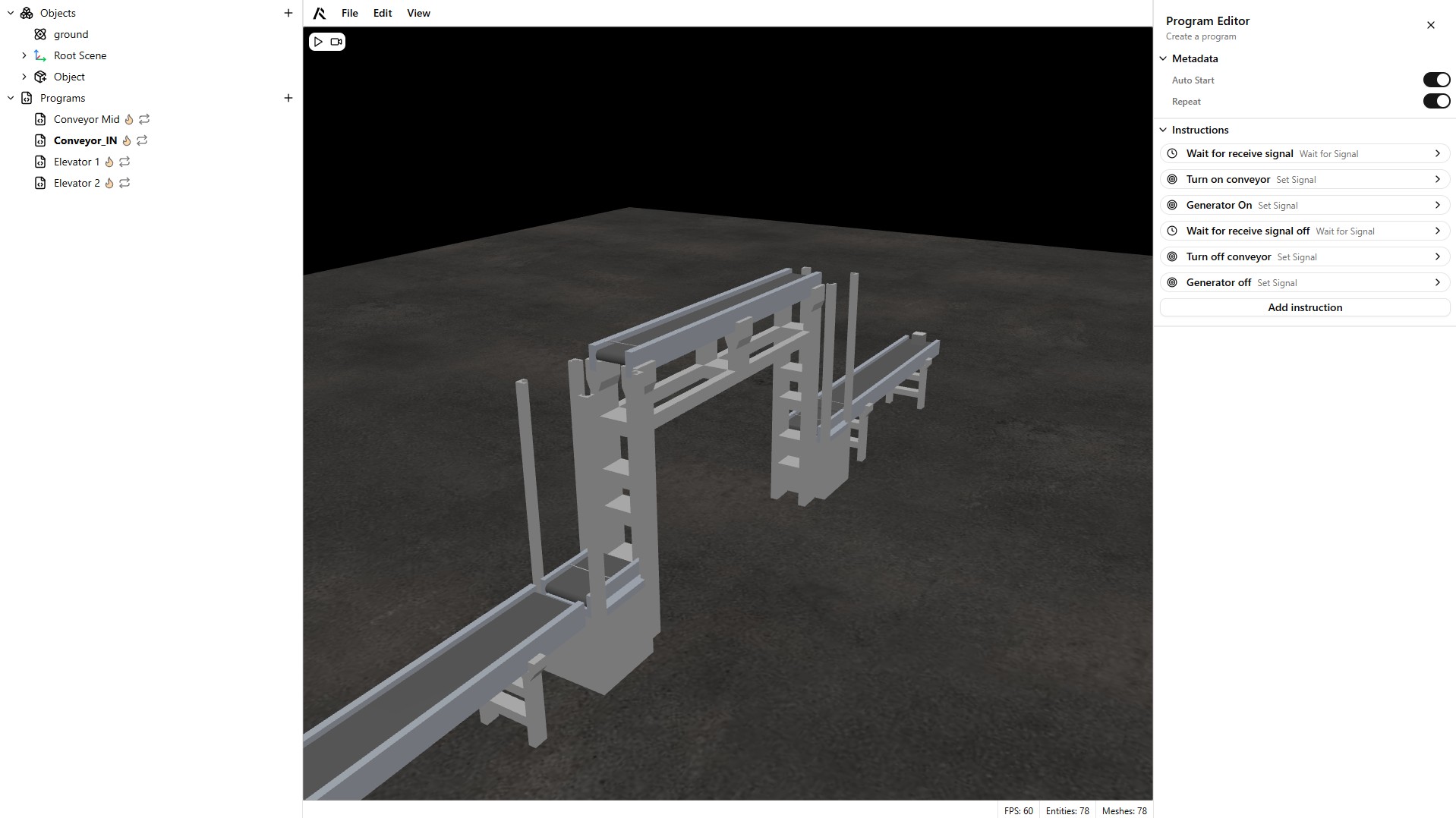
There are eight instruction types:
- Move to target
- Move joints
- Wait
- Wait for signal
- Set signal
- Call program
- Conditional call
- Set cartesian speed
- Set joint speed
Move to target
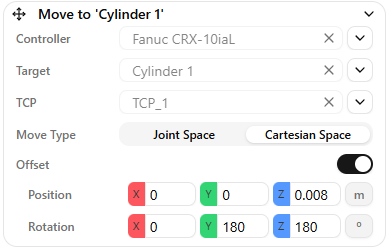
The Move to Target instruction moves an articulated chain to a specific position.
This instruction has five configurable parameters:
- Controller
- TCP
- Position
- Move type
- Offset
Controller
To execute a Move to Target instruction, you need an Articulation Controller component in your scene (robot, gripper, cartesian axis, or other articulated chain).
Select a controller by clicking the list button and choosing from available controllers, or drag and drop a scene object with an Articulation Controller into the field.
TCP
The TCP defines the frame used to reach the target position. By default, the TCP is the position of the last joint in the articulated body.
You can define more than one TCP by creating child frames under the last joint. These frames appear in the TCP parameter list.
Position
The Position parameter defines the target frame. You can select a frame from the scene list or drag and drop a scene object into the field.
Warning
Move to Target sends the articulation TCP (tool center point) to the selected frame position. Make sure the correct TCP is selected.
Move type
The Move type parameter can be either cartesian space or joint space (commonly called MoveL and MoveJ)
- Cartesian space move: Moves the articulated body's TCP from its current position to the target position in a straight line (MoveL). Use this when path accuracy is important.
- Joint space move: Moves by interpolating joint positions, so the TCP path is not necessarily straight (MoveJ). Use this when higher speed is more important than path accuracy.
Offset
If needed, Move to Target accepts an Offset parameter. The offset is measured along the selected frame.
You can also set an offset without a position frame. In that case, the position is set to "relative to self", which moves the chain along the configured TCP by the specified offset.
Warning
Parallel articulated chains do not support inverse kinematics. These articulations cannot use Move to Target and must use Move Joints instead.
Move joints
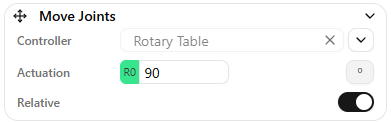
The Move Joints instruction moves individual joints of an articulated chain.
This instruction has three main parameters:
- Controller
- Joint target value
- Relative
Controller
As with Move to Target, this must reference the articulated chain you want to move.
Joint target value
The Joint target value is the absolute value you want to set each joint to in a program step. Only two joint types appear:
- Revolute: value measured in degrees
- Prismatic: value measured in meters
Warning
Joint values appear in the same order as your joint tree.
Relative
The Relative parameter configures the instruction as relative, meaning the values you set are added to each joint's current position.
If Relative is disabled, the instruction performs an absolute move and each joint moves to the exact value set in Joint target value.
Set cartesian speed
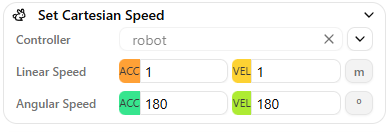
The Set Cartesian Speed instruction defines Cartesian linear and angular velocity and acceleration limits for an articulated body.
This instruction has five parameters:
- Controller
- Linear velocity
- Linear acceleration
- Angular velocity
- Angular acceleration
These settings are used whenever an articulation moves to a target in Cartesian space (X, Y, Z).
Controller
The Articulation Controller whose speed parameters you want to set.
Linear velocity
Linear velocity in m/s.
Linear acceleration
Linear acceleration in m/s^2.
Angular velocity
Angular velocity in deg/s.
Angular acceleration
Angular acceleration in deg/s^2.
Set Joint speed
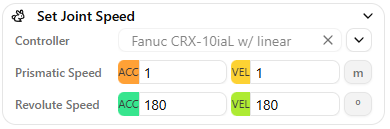
The Set Joint Speed instruction defines angular velocity and acceleration limits for an articulated body's joints.
This instruction has three parameters:
- Controller
- Angular velocity
- Angular acceleration
These settings are used whenever Move Joints is executed, and whenever Move to Target runs in joint space.
Controller
The Articulation Controller whose joint speed and acceleration parameters you want to set.
Angular velocity
Joints' angular velocity in deg/s for revolute joints and m/s for prismatic joints.
Angular acceleration
Joints' angular acceleration in deg/s^2 for revolute joints and m/s^2 for prismatic joints.
Warning
If an articulated body includes both prismatic and revolute joints, the Set Joint Speed instruction lets you configure velocity and acceleration for both joint types.
Wait
The Wait instruction blocks the program for a specified amount of time (in seconds).

Wait for signal
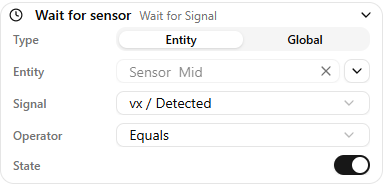
The Wait for Signal instruction waits until a signal matches a given condition.
This instruction has four parameters:
- Signal type
- Signal
- Operator
- State
Signal type
Defines whether you are reading a global signal or an entity signal.
As described in the Signals page, global signals are configured in Settings, and entity signals come from Components in the scene.
- If Global is selected, choose the signal from the dropdown list.
- If Entity is selected, choose the entity you want to read signals from.
Signal
Select the specific signal to read, such as a sensor state.
Operator
Defines the comparison operator. Depending on the signal type (boolean, float, or integer), the available operators are:
- equal
- not equal
- greater than
- less than
State
Defines the value you want to compare against.
Set signal
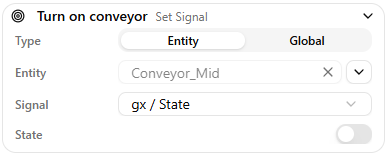
The Set Signal instruction sets a signal's state.
This instruction has three parameters:
- Signal type
- Signal
- State
Signal type
Defines whether you are setting a global signal or an entity signal.
As described in the Signals page, global signals are configured in Settings, and entity signals come from Components in the scene.
- If Global is selected, choose the signal from the dropdown list.
- If Entity is selected, choose the entity you want to set a signal on.
Signal
Select the signal you want to set, for example the state of a conveyor (On/Off).
State
Defines the value you want to set. The input field changes based on the signal type: boolean, integer, or float.
Call program
The Call Program instruction calls another program in the Program Tree.
This instruction has one parameter:
- Program

Program
Select the program name from the dropdown list.
Warning
Only programs with Auto-start turned off can be called by this instruction.
Conditional call
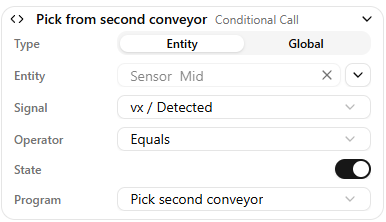
The Conditional Call instruction is a non-blocking version of Wait for Signal + Call Program. It triggers only if the condition is true at the moment it runs.
This instruction has four parameters:
- Signal type
- Operator
- State
- Program
Signal type
Defines whether you are reading a global signal or an entity signal.
As described in the Signals page, global signals are configured in Settings, and entity signals come from Components in the scene.
- If Global is selected, choose the signal from the dropdown list.
- If Entity is selected, choose the entity you want to read signals from.
Operator
Defines the comparison operator. Depending on the signal type (boolean, float, or integer), the available operators are:
- equal
- not equal
- greater than
- less than
State
Defines the value you want to compare against.
Program
Select the program name from the dropdown list.