Scene View
Navigate and interact with your 3D scene in the viewport
The scene viewport displays the 3D representation of the models from the camera’s perspective. Users can orbit and pan the camera. Users can also directly select objects within the scene and interact with them.
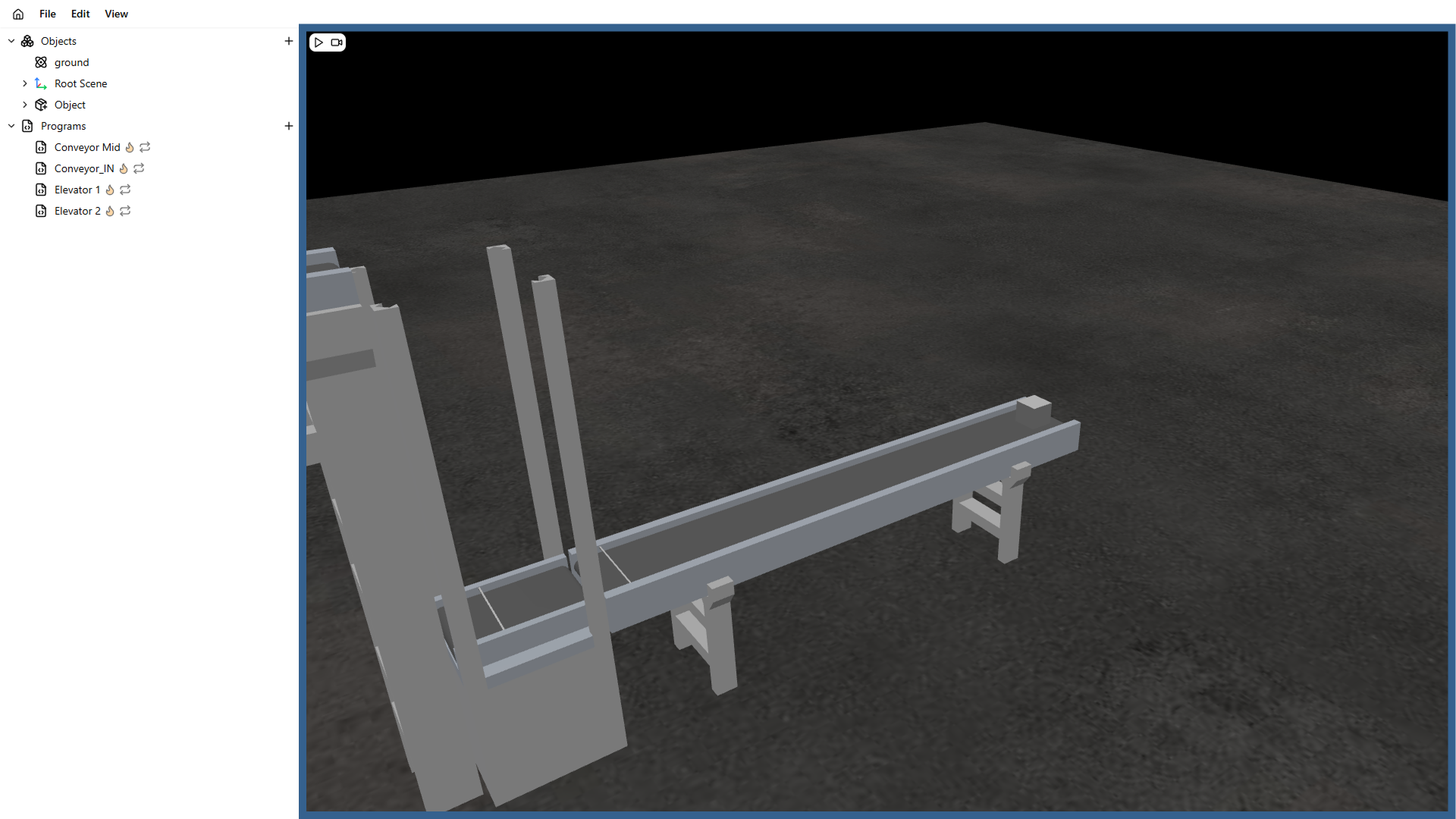
Camera controls
You can navigate and control the camera position and rotation using your mouse and keyboard.
Panning
Panning lets you move the camera’s viewport laterally across the 3D scene. Use the right mouse button.
Rotating
Rotating lets you rotate the camera’s viewport along all axes. Use the left mouse button.
Zoom
To zoom in and out of the scene, use the mouse scroll wheel.
Transform Gizmo
The transform gizmo allows you to change the position and rotation of objects within the scene. The transform gizmo has two states: rotation and translation. Toggle between them using CTRL + R.
- Translation: the translation gizmo lets you move an object along the x, y, and z axes.
- Rotation: the rotation gizmo lets you rotate an object around the x, y, and z axes.
Selecting scene objects
In the scene viewport it is possible to select the bodies on the scene independently. The objects selected will be highlighted in yellow, and it will be bolded in the object scene editor.
Starting/Stopping a simulation
To start a simulation, click the start button in the top-left corner of the viewport. The icon changes from play to stop. If you click stop, the simulation returns to the initial conditions from before play.
Recording a simulation
To record a simulation, click the record button next to the play button. While the button is red, you are recording. Click again to stop. A .mp4 or .webM file will be downloaded when the recording ends.